


Marketing banners are a great way to highlight specials your store may be running during various periods of time, such as holiday deals or daily specials. The marketing banner settings are found in the new Green Skin Theme E-comm settings. Please refer to news and update ‘New Online Delivery and Order Settings‘ to locate these settings. **Please note… there is a fair amount of initial setup required for the banners, and if you need help getting this in place, please reach out to us at 720-740-3076. Once these settings are in place, it is very quick and easy to create more banner images, upload them, and use them in Green Skin Theme E-Commerce.
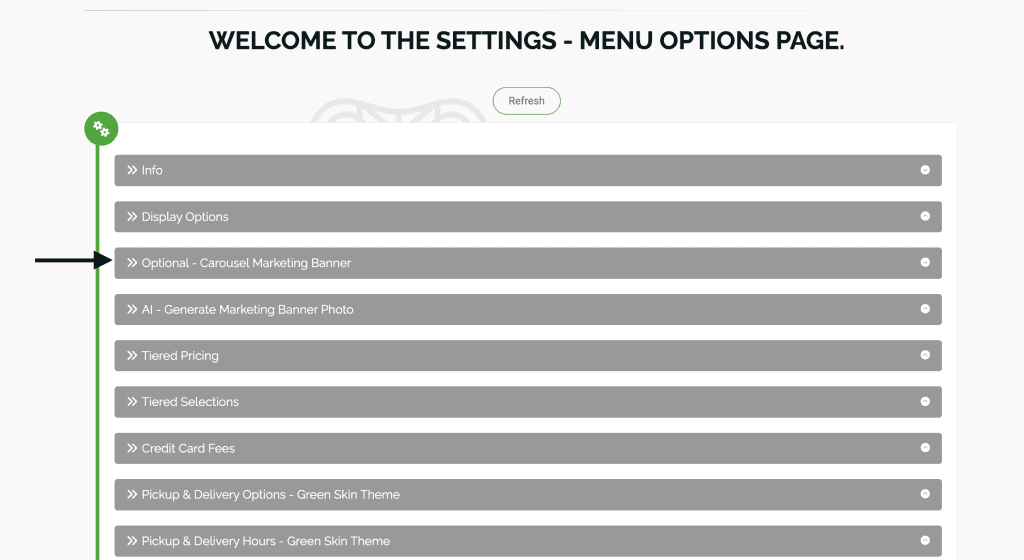
Once you are on the settings page, scroll down to the setting ‘Optional-Carousel Marketing Banner.’ Check the box for ‘Show Carousel Marketing Banner.’
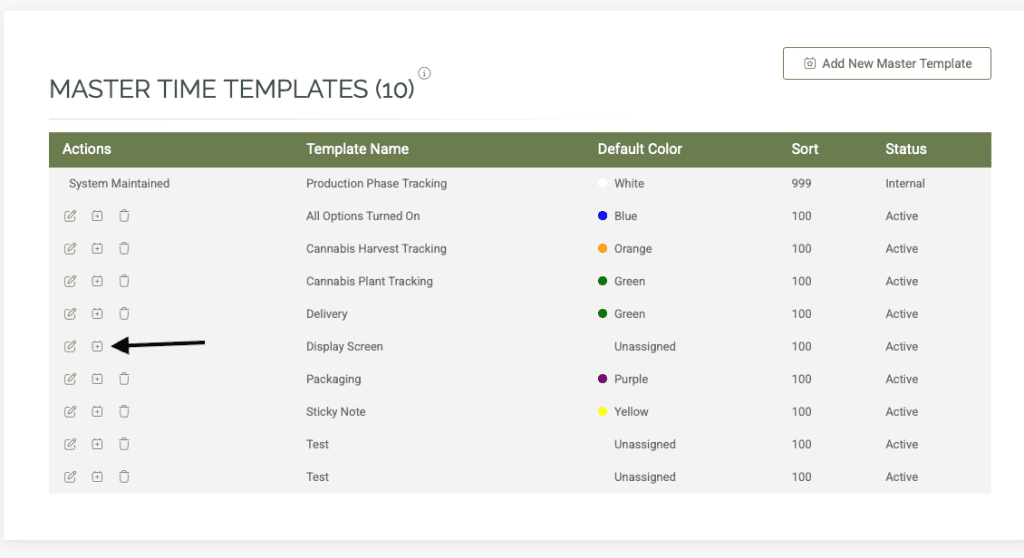
Leave these settings open, open a new tab in adilas, and navigate to the Elements of Time homepage. Under more options, click on view/add/edit master time templates. You can call the template something like Marketing. You don’t need to add or remove any settings, just add the name and hit submit/add.
Now you can add an Element of Time by clicking on the plus sign to the left of the template you just created. This can be called Banners. This is where you will store the images for the banners.
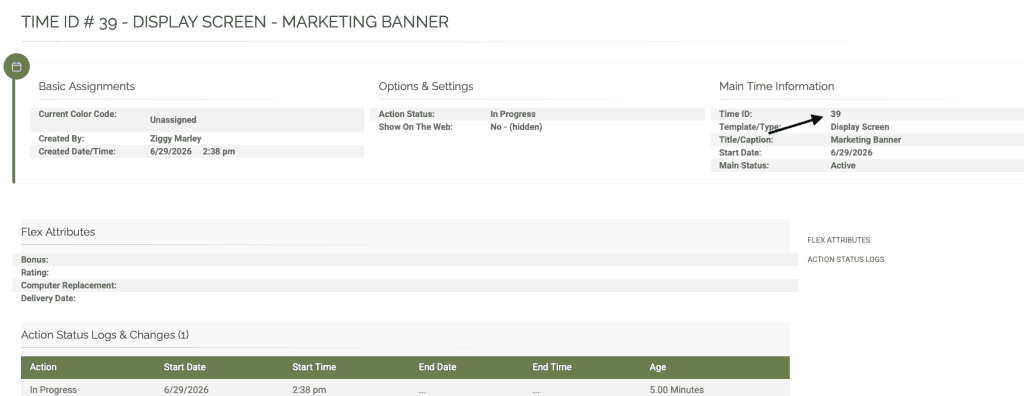
Here is the Element of time id that was created, and the important information is the time id #, which is 39, in this example. This is the number needed for the settings that we will return to.
Go back to your settings tab, and enter the number of the time id in the field and go to the bottom of the settings page and click submit. Now you have a place to store your images.
You can scroll down to the next setting if you’d like to use the built-in AI generator for these images. It will size it as needed- You just enter your description in the prompt. You can get your own images for the banner, but make sure to follow the image guidelines for best results.
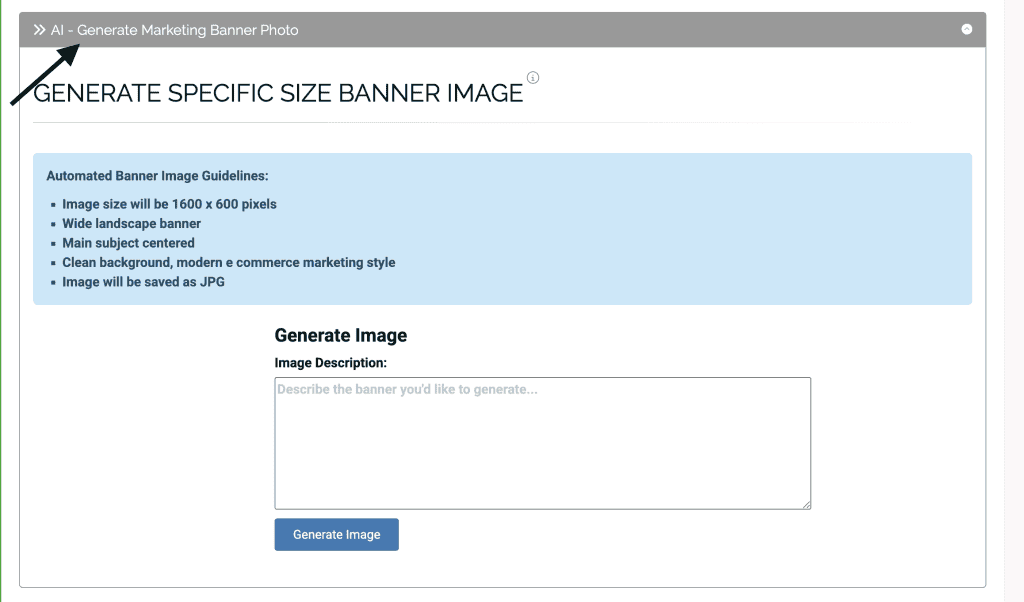
Here is the basic banner created with the short prompt.
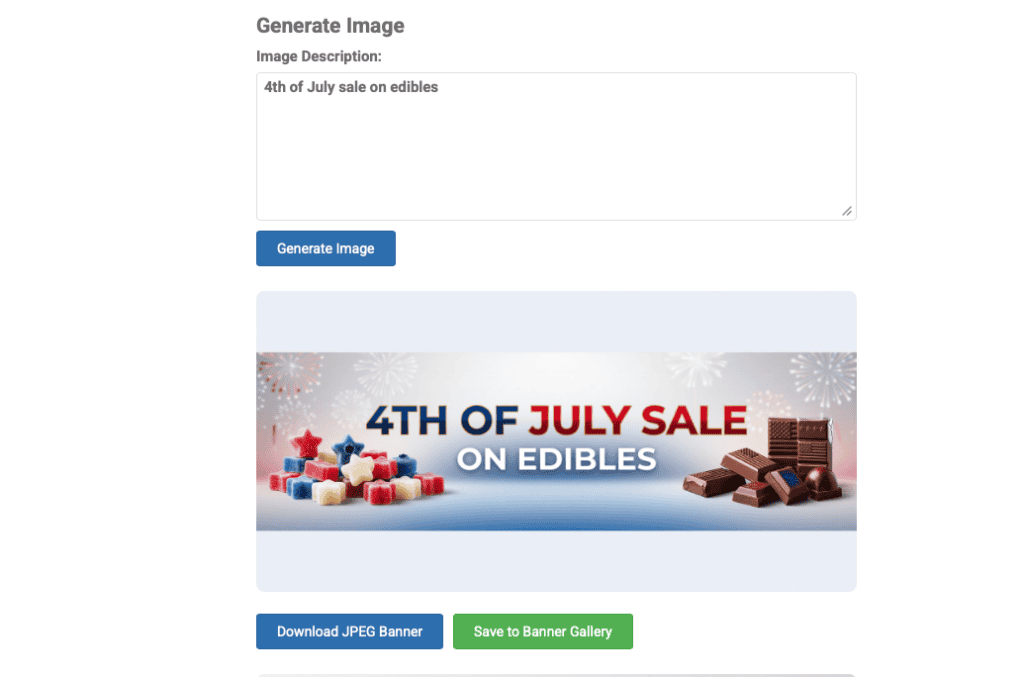
If you click ‘save to banner gallery’ it will automatically upload the banner to the Element of Time Id that was entered in the settings. If you ‘click download jpeg banner’ it will save to your desktop and you will need to manually add it to the EOT.
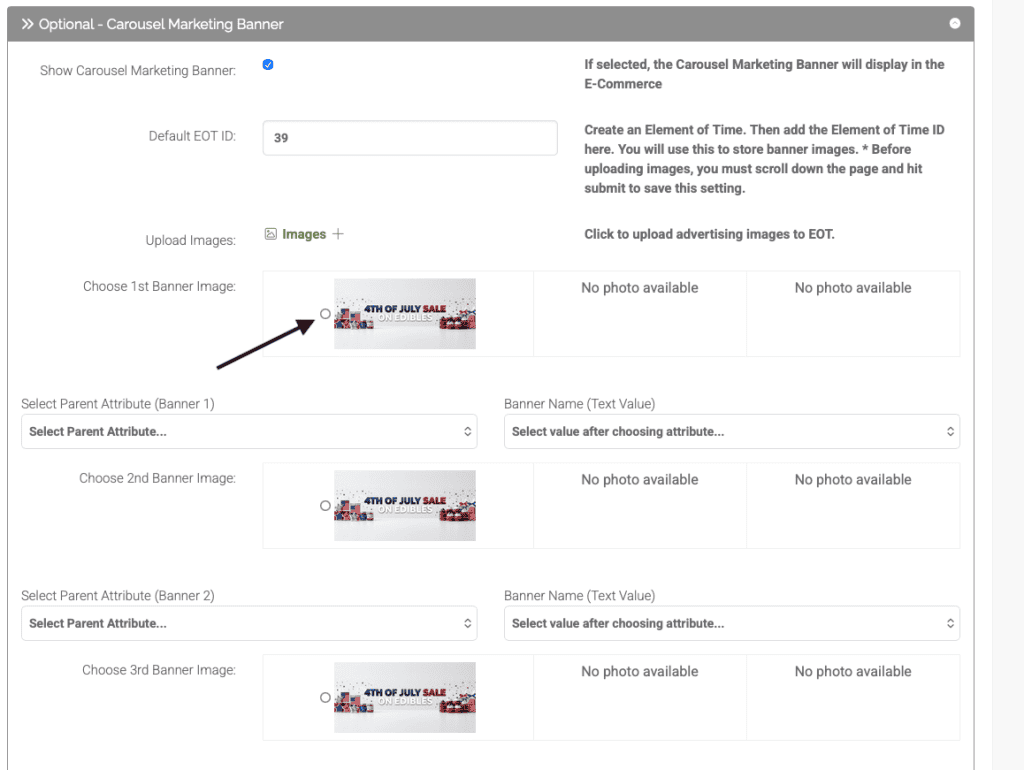
It also now shows up in the previous settings, so now you can choose this banner to display (total of 3 banners available). You can upload as many different images as you want and assign them as you wish, but only three banners will available at any one time. To select an image, click on the dot to the left of the image.
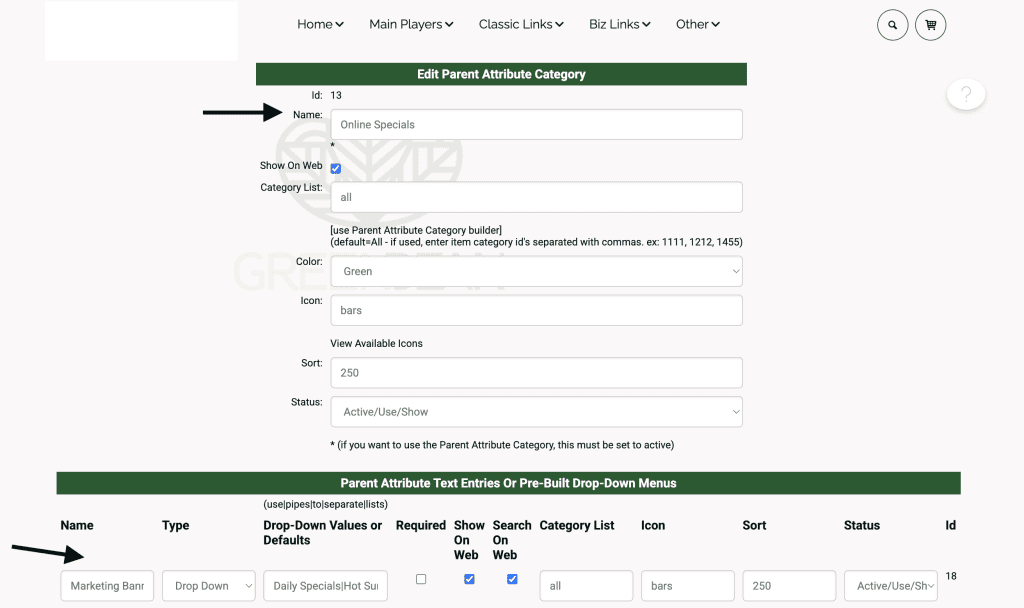
Leave this tab open one more time and open a new tab. Navigate to the items homepage. Then click on more options and choose parent attributes/tags (far left column at the bottom of the list). You will need to set up a parent attribute for these banners. Fill in the fields as seen below. This is where you will store the names of the banners. The main name on top can be Online Specials. Choose show on web. Then the name of the attribute will be Marketing Banner, also show on web and search on web. You will make it a drop down list and separate the specials with a pipe. Limit list to 3 specials, one for each banner. If you add more specials later, you can add them to this list. Make sure to save.
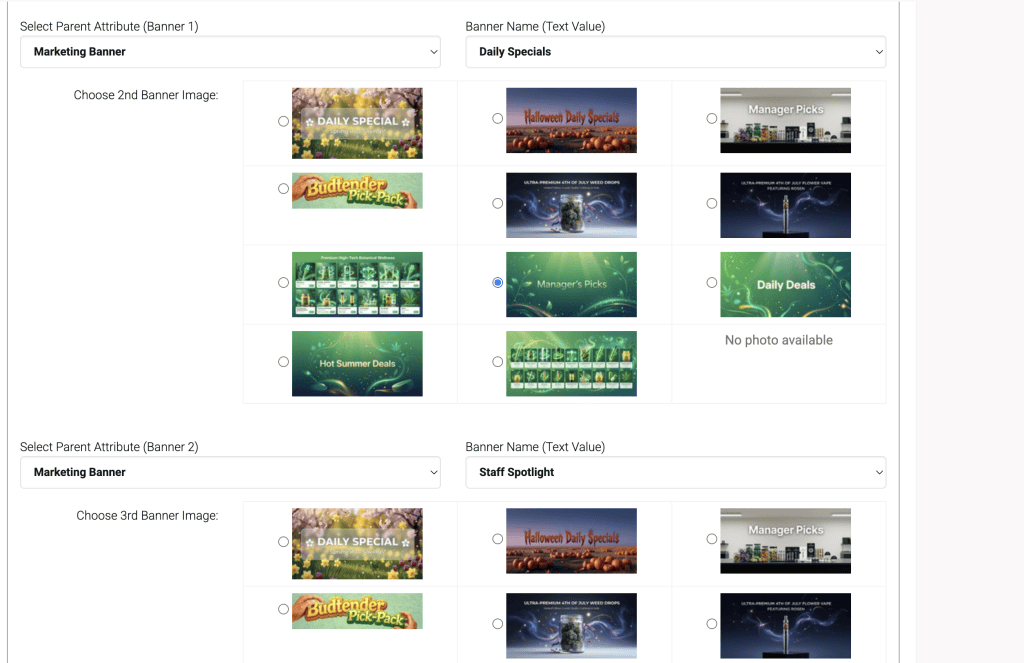
Navigate back to your settings tab, and choose the parent attribute for Marketing Banner, and then the drop down value for the banner name. In this client’s settings, here is what the final set-up looks like. They have multiple images that they can choose from. They have one banner set to daily specials and another banner set to staff spotlight (both of these were set up in the drop down menu in the parent attributes.
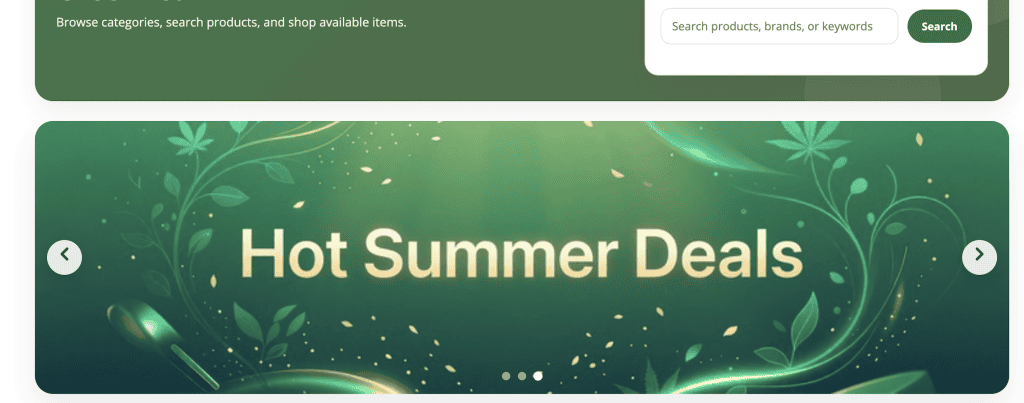
Now when we log into their e-commerce, we can see the banner. It will rotate along with the other two banners. This is the third banner that is not part of the image above, as they are always rotating on screen.
As always, please feel free to reach out to Technical Support at 720-740-3076 or email support@adilas.biz if you have any questions, concerns, or suggestions.