
If you haven’t checked out our new Green Skin e-commerce theme, now’s the time! These settings allow for customizing your online store in many ways. See the previous news and update “Adilas E-Commerce Update – New Green Commerce Interface Launch” for more information.
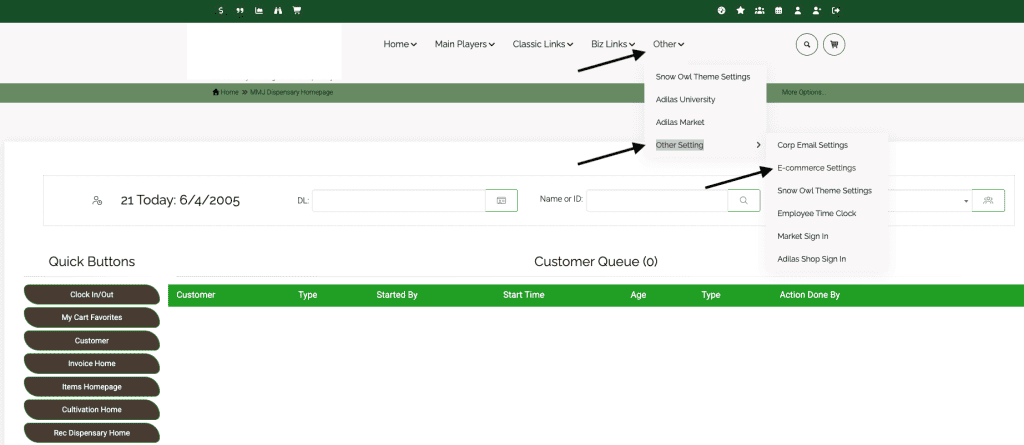
Once you have the Green Skin activated (please reach out to support for help with this), navigate to the new settings. From Other, click on Other Setting, then E-commerce Settings.
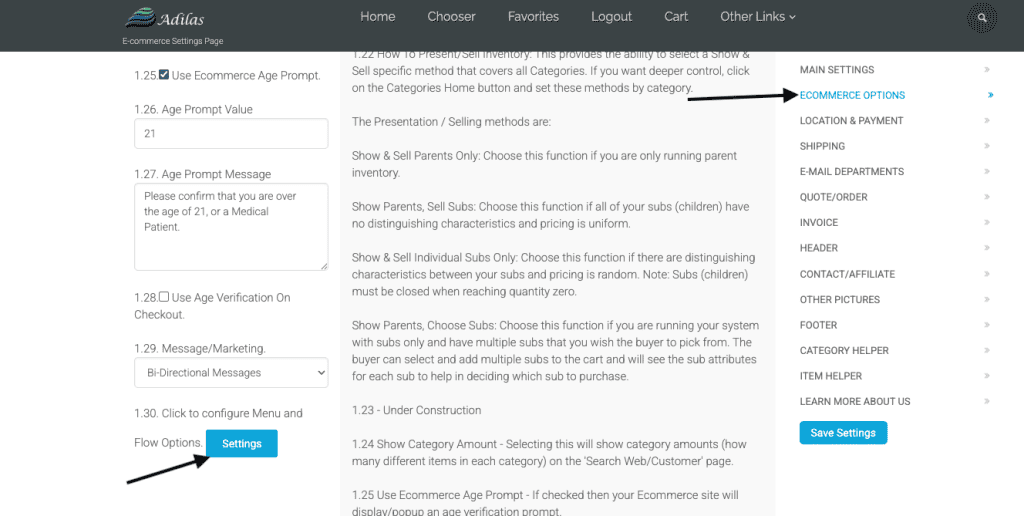
Click on e-commerce options and then scroll down to 1.30-Menu and flow options.
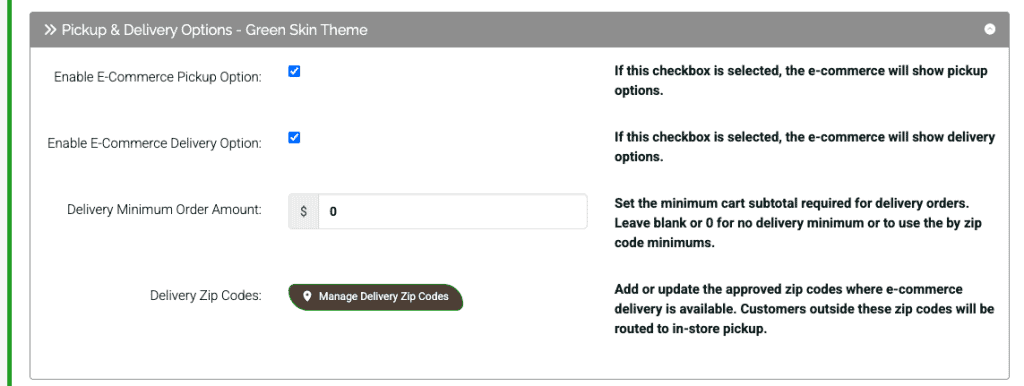
Here we will scroll down to the delivery options- Green Skin Theme.
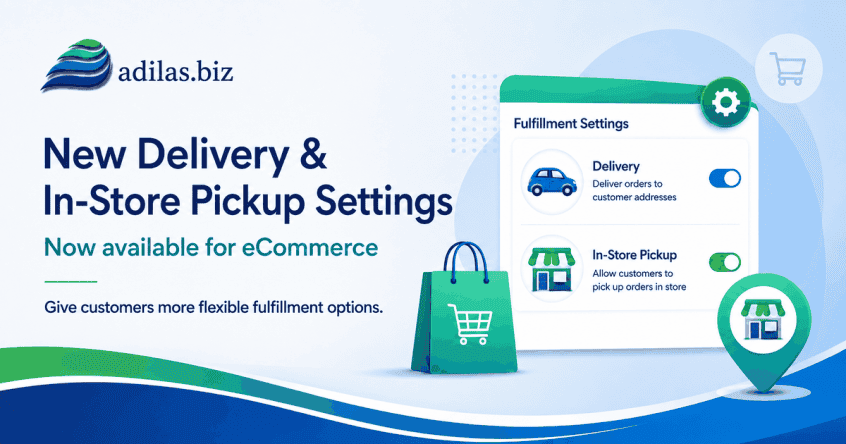
Check the box to enable delivery option. If you don’t do delivery, keep the box unchecked. Set the minimum required delivery amount or set to 0 if you will use the zip codes to determine the delivery minimum. Check the box if you allow for in-store pickup.
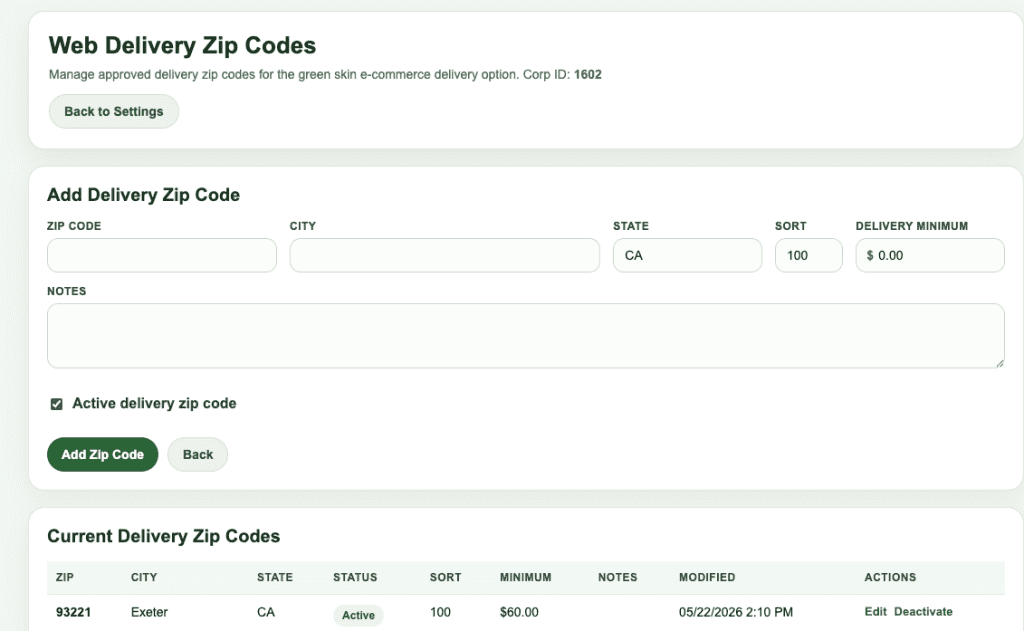
Click on Manage Delivery Zip Codes to add in the list of zip codes you will deliver to, as well as any specific delivery minimums.
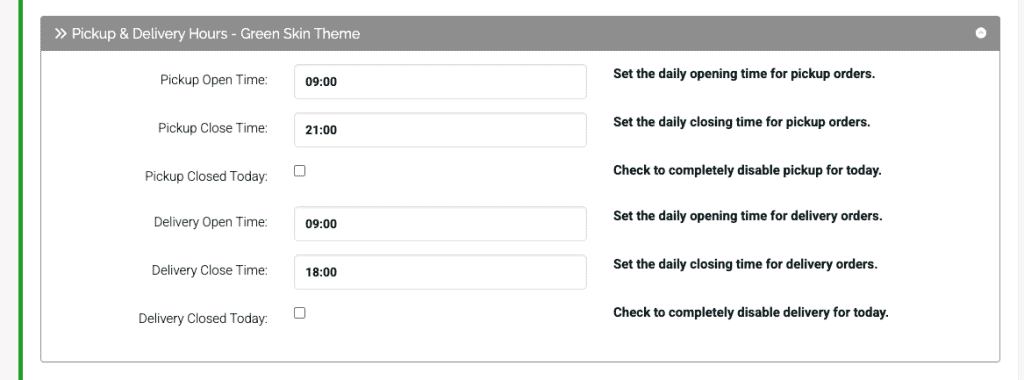
The next setting we will review is the Pickup & Delivery Hours-Green Skin Theme. These are located just below the previously described delivery options.
These settings allow you to dictate what delivery windows you would like to set, as well as if you don’t have delivery or online orders available on a certain day. Please note: You will need to access the settings for that day to disable them, and then uncheck the box to turn them back on. Already configured are the settings that allow for delivery and pickup on the hour and on the half hour. These are pre-programmed. Also pre-programmed is the lag time before a delivery can be received. There is an hour of lag time built in for deliveries and pickup orders, even if ASAP is selected as an option.
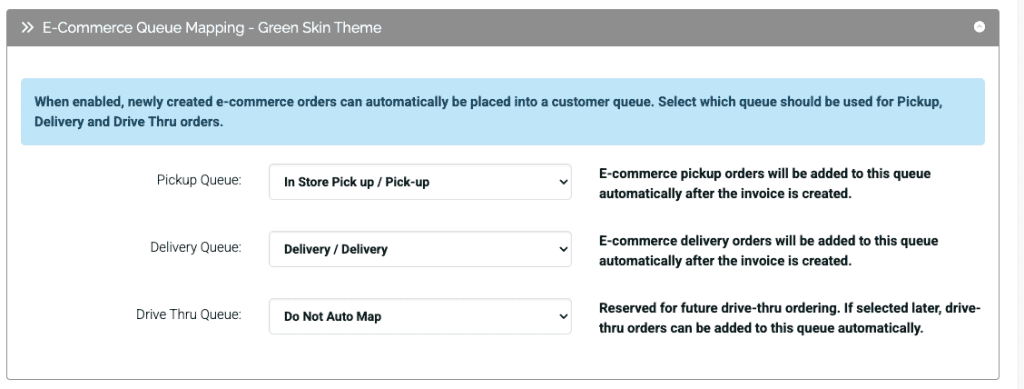
One more setting to consider..If you are using a pickup and delivery queue in your store to organize your online orders, click on E-Commerce Queue Mapping-Green Skin Theme. ** Please note: Before you can set these defaults, you must create the additional sub queues in adilas. You can do this by going to the queue homepage (the icon on the right top side of any page with the multiple people/heads). Click on more options and then add/edit queues.
Once you have these sub queues, you can choose one from the drop down list to map to the queues on the left for pickup and delivery. Drive thru is futuristic and won’t do anything at this time.
Make sure to click submit each time you add/change settings.
As always, please feel free to reach out to Technical Support at 720-740-3076 or email support@adilas.biz if you have any questions, concerns, or suggestions.